 COME
COMECOME Entry Page and APK: Reading a game-related download page
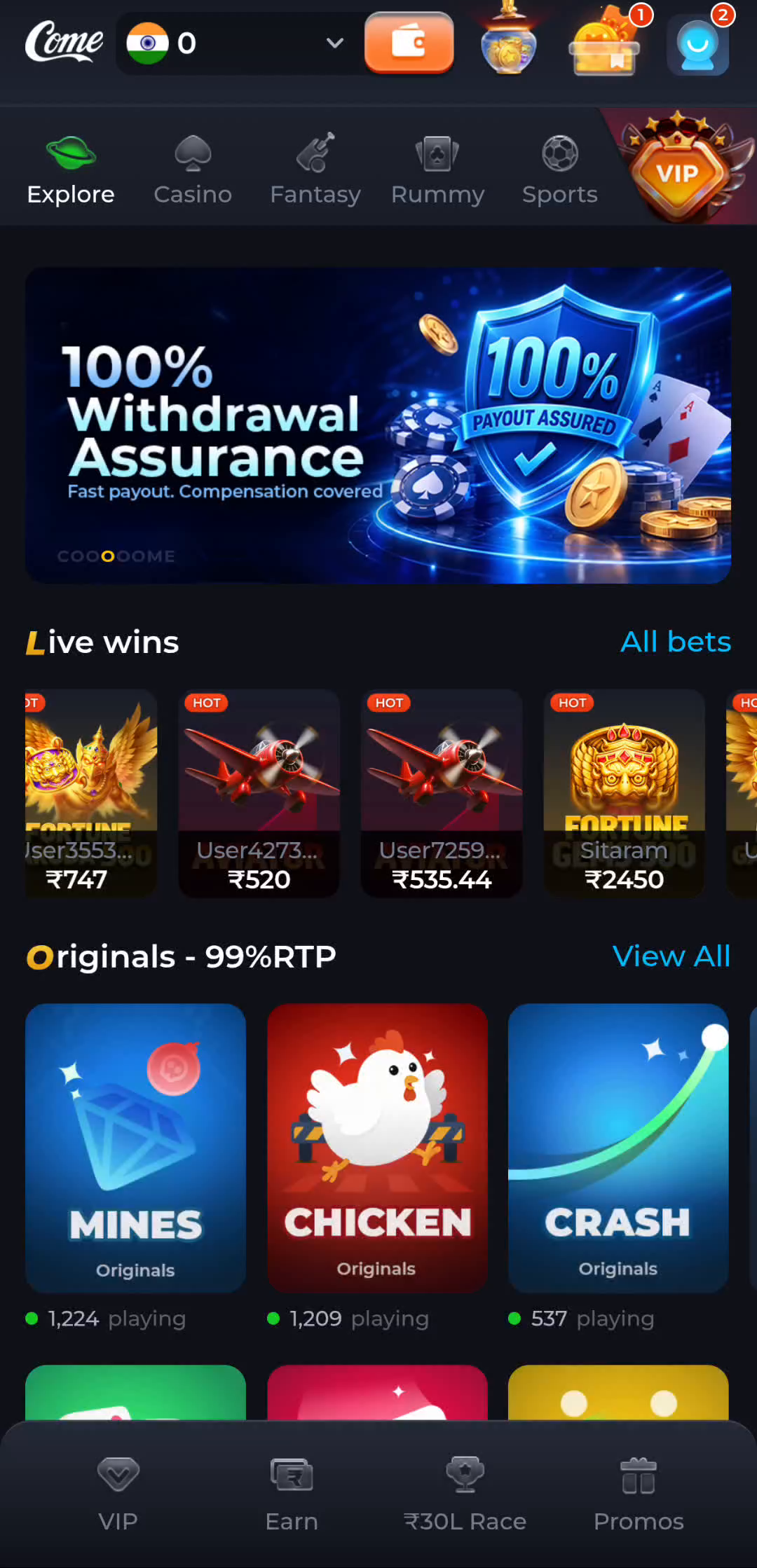
Observe the page, transfer and installed app separately. A page contains game artwork and sports categories, and you need to decide which control obtains the Android app.
Opening the page is the first stage
The app entry used by this website opens a COME web page. Seeing that page is a successful navigation, but it does not mean that Android has received an installation file. A web interface can contain game categories, a profile button and account controls while still running in the browser. Use the browser address bar and its download list to distinguish the page from a saved package.
Do not add an APK extension to the page address or assume that a button image is the installer itself. Follow the download option presented by the destination and observe what happens. A file transfer normally appears in the browser's downloads area or a device notification. A completed transfer and a failed transfer require different next steps.
Follow one transfer from start to finish
After selecting the relevant Android download control, open the browser's downloads view. Look for the item associated with the action you just took. If it is still transferring, let it finish on a stable connection. If it is paused, inspect the browser's reason. Starting several more copies makes it harder to identify which file completed and can waste storage.
When the browser reports completion, locate that file. If it is an APK, opening it should lead to Android's installation interface, subject to device support and security checks. If it is a web page, an image or another unexpected file type, stop and revisit the source. Renaming it cannot turn it into a valid Android package.
A shortcut is different from an installed package
A home-screen shortcut can reopen a website. An installed Android app appears in the device's application settings, where system information and permissions can be examined. The icon alone is not a reliable distinction because both can use brand artwork. If you are unsure which you created, inspect the device's app information rather than deleting items at random.
Decide when this task is complete
This task is complete when you know which stage you reached: app page open, file saved or Android installer open. You do not need to repeat earlier successful steps. If the download control is absent or returns an unexpected object, describe that exact result through the product's help route instead of guessing another mirror or file address.
Apply the steps to this situation
For reading a game-related download page, begin with this specific task: observe the page, transfer and installed app separately.
- Keep the product page open and read the Android option it offers.
- Start one transfer and inspect its item in the browser downloads view.
- Continue to the installer only when that item is complete.
The important boundary is between navigation and transfer. A page loading successfully is useful evidence about the link, but the download list is where you establish whether a file exists. If you return later, use that recorded stage rather than assuming a previous tap completed the whole process.
Questions about this task
Why did the button return me to a web page?
The configured entry is a product page. Downloading and installing require their own actions after that page opens.
Does a browser page mean there is no Android app?
No. It tells you what this link opened. Use the Android option and release information actually shown by the product.
A related next step
Tie the completed package to its source before opening it. A page contains game artwork and sports categories, and you need to decide which control obtains the Android app.
COME File Identification: Reading a game-related download page